How to find quotes
Overview
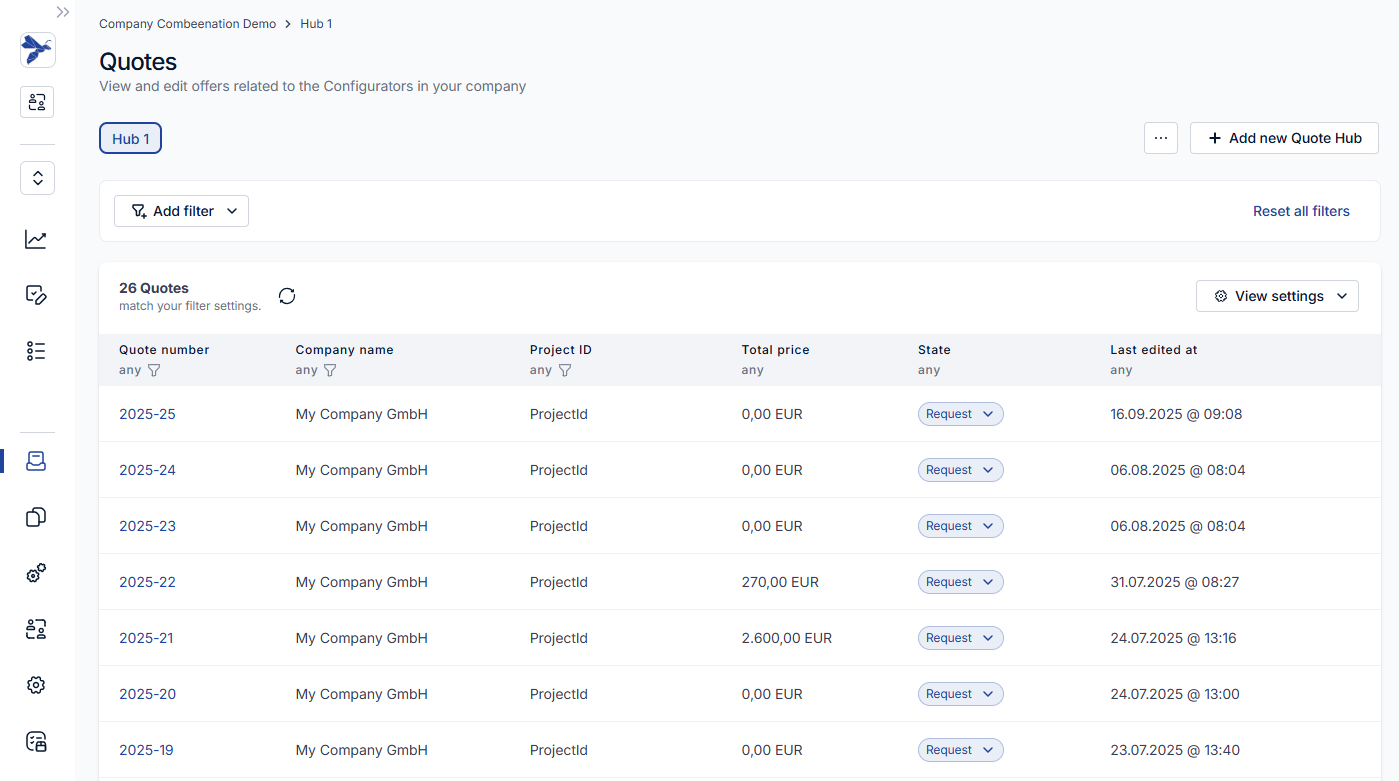
After clicking on Quotes in the left menu bar, you can select the desired quote hub with all created quotes. You can configure your set of columns which should be shown for each quote. Simply configure your view to meet your requirements.
Settings
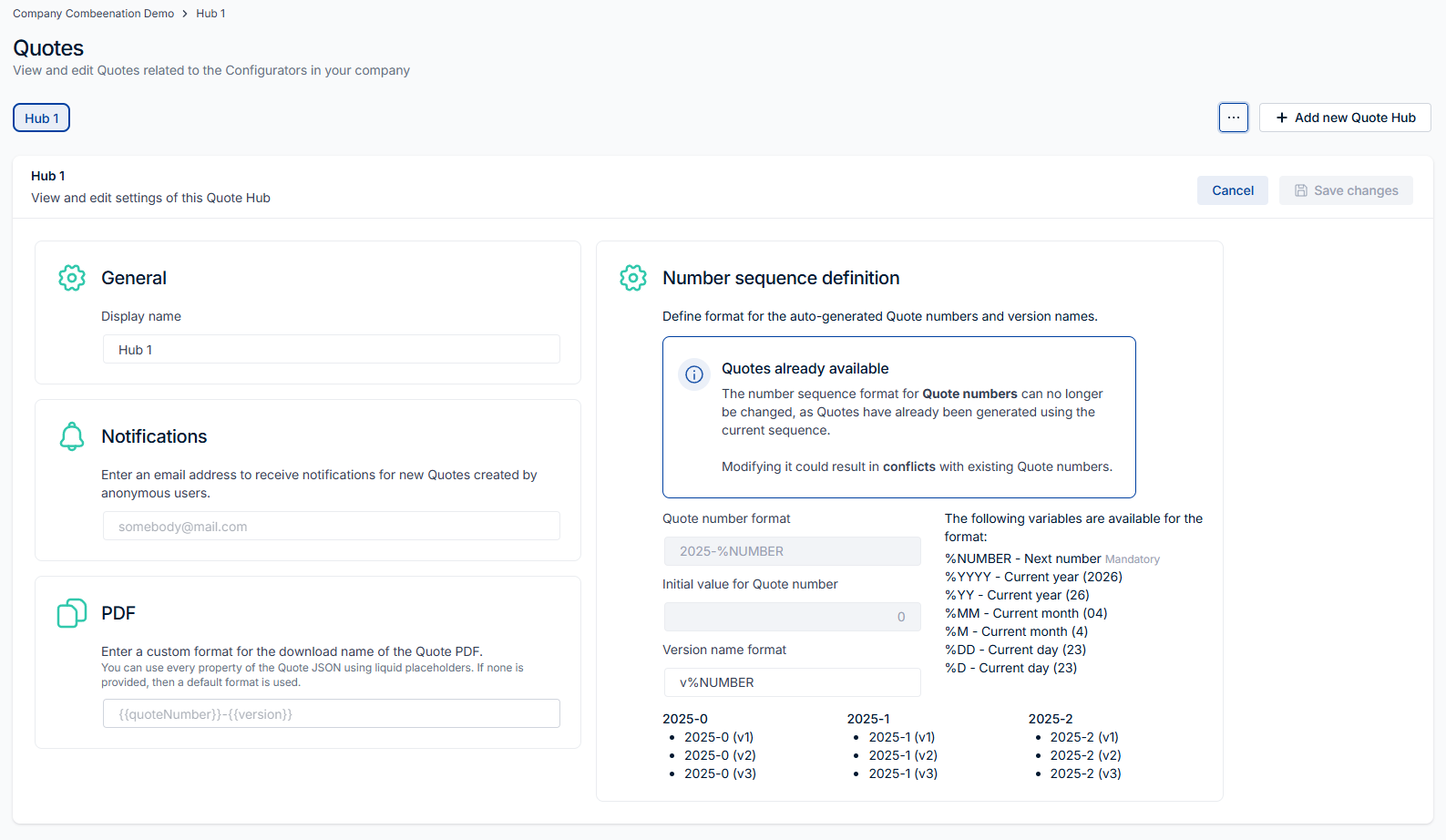
With the three-dots context menu next to Add new Quote Hub you can delete or change the quote hub.
If you decide to change your quote hub, you can find all required settings for your company or distributor.
It’s possible to change the display name or the number sequence.
In addition, it's also possible to define a custom format of the quote PDF file name.
If none is specified, then default name {{quoteNumber}}-{{version}} is used.
All liquid placeholders of the quote PDF file name represent objects defined in the Quote JSON.
If you want to access the first name of the assignee, then simply use {{assignee.firstName}}.
In addition, it's also possible to use liquid filters, e.g., to format a date.
Examples
{{quoteNumber}}-{{version}}
{{quoteNumber}}-{{version}}-{{assignee.lastName}}-{{ quoteDate | date:"%Y-%m-%d" }}
To use the current timestamp, then simply use now which is provided by the system.
{{quoteNumber}}-{{version}}-{{assignee.lastName}}-{{ now | date: "%Y-%m-%d" }}
In addition, you can configure the email address where quote notifications should be sent. As a result, you get immediately informed if any anonymous user has created a quote.
You can also control who is allowed to view and edit quotes within the hub. See Quote Permissions for details.
Many settings as the number sequence definition, PDF file name and the notifications can be configured per company/distributor.
The display name of the quote hub is defined globally. For admin users: Utilize the distributor selection to switch between the company/distributor specific quote hub settings.
After you have deleted a quote hub, all corresponding quotes will be deleted. Please always double-check if you really want to delete all quotes, this cannot be undone.
Filtering
The first column shows the quote number described Getting started with quotes which uniquely identifies each quote. For simplicity, it’s possible to change the State and the Assignee of the quote directly in the overview page without opening the entire quote.
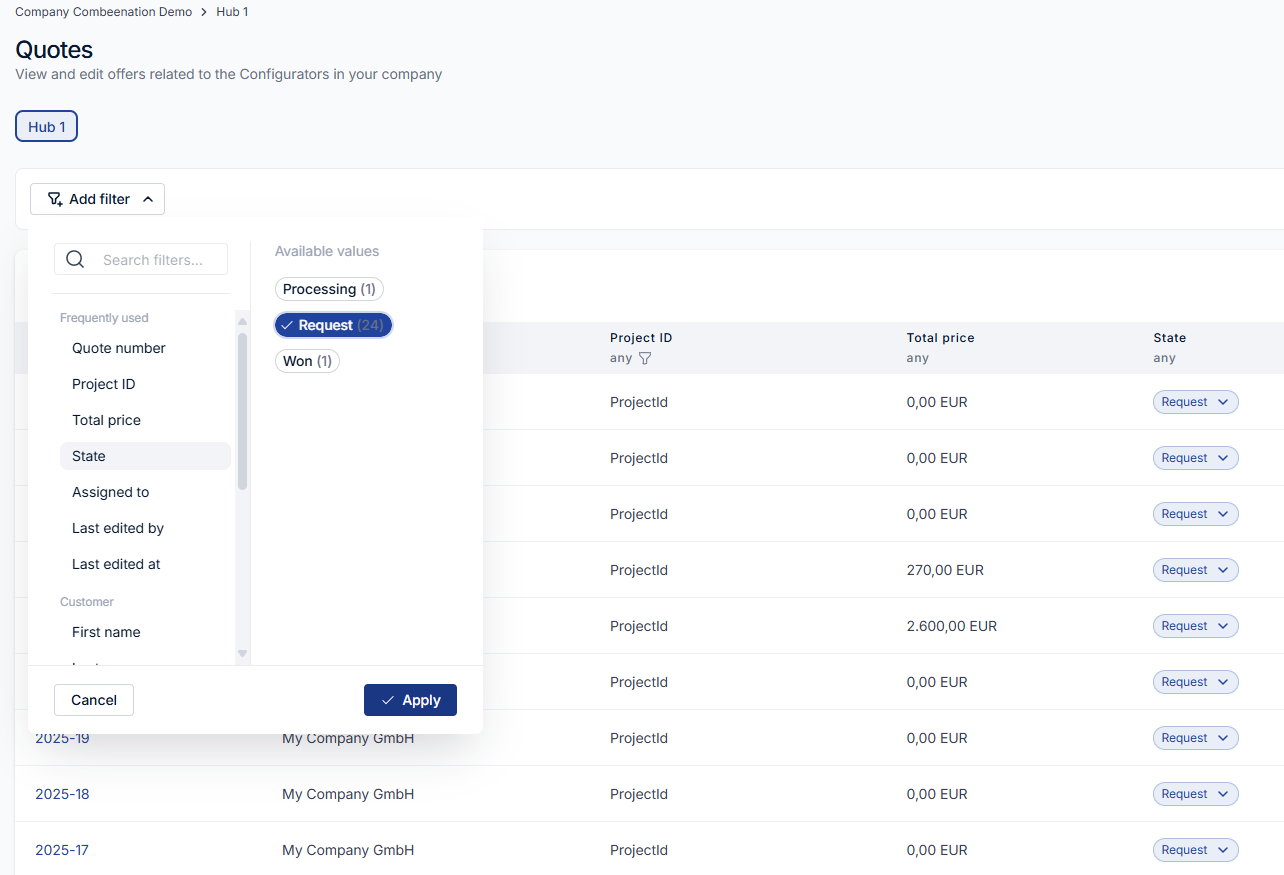
You can filter your quotes and view details about your quotes. When you select a value for a filter property, conditions are connected using AND logic, meaning all conditions must be met. If you select multiple values within a single filter property, these values are connected using OR logic, meaning any of the selected values can apply.
The following example filters all quotes with the state Request. For instance, it would be possible to change the state or the assignee of these quotes by clicking on the select item.