

How to work with quotes
- 02 Feb 2026
- 4 Minutes to read
- Contributors


- Print
- DarkLight
How to work with quotes
- Updated on 02 Feb 2026
- 4 Minutes to read
- Contributors
- Print
- DarkLight
Article summary
Did you find this summary helpful?
Thank you for your feedback!
Creating quotes
Quotes can only be created via the configurator, or more precisely when the configuration is finished.
You will see the Quote type which can be used to
enrich every newly created quote with configuration data,
select the name of the asset bundle (assigned to the configurator) which should be used to create the quote PDF
optionally create rules for selected properties.
The following type of rules enable the restriction of properties in the quote details page:
QuoteLockRule… locks a selected property and makes it read-onlyQuoteMinMaxRule… allowed number range (e.g.Min = 1andMax = 5)QuoteAllowedTextsRule… allowed text values (e.g."mm","cm","m")QuoteAllowedNumbersRule… allowed number values (e.g.1,5,10or15)
new Quote {
  quoteHubName : "QuoteHubName",
  assetBundleName: "MyBundle",
  // pdfAssetPath : "assetFolder.pdfAssetName",
  assignee: [
    user.mail
  ],
  subject : "Subject",
  projectId : "ProjectId",
  currency : Currency.EUR,
  // taxRule : QuoteTaxRule.RevealSalesTax,
  // paymentDueDays : 30,
  // offerValidityDays : 90,
  // contributionMarginRatioThreshold : 60,
  customer : new {
    firstName : "John",
    lastName : "Doe",
    companyName : "My Company GmbH",
    city : "City",
    street : "Street 13",
    // addressLine1 : "My Company GmbH",
    // addressLine2 : "Building C",
    postalCode : "PostalCode",
    country : "Country",
    emailAddress : "john.doe@mail.com",
    phoneNumber : "+43 1 12345678"
  },
  company: new {
    name: "Combeenation GmbH",
    city: "Neufelden",
    street: "Linzer Straße 4",
    // addressLine1: "Oberösterreich",
    // addressLine2: "Building A",
    postalCode: "4120",
    country: "Österreich",
    emailAddress: "info@combeenation.com",
    phoneNumber: "+43 7282 202 00",
    imageUrl: "",
    taxId: "ATU23423"
    // bankDetails: {
      // accountHolderName: "Combeenation GmbH",
      // accountNumber: "324234",
      // bankName: "Sparkasse",
      // swift: "BC3234",
      // bic: "BC3234",
      // iban: "AT32304203402340"
    // }
  },
  items : [
    new QuoteItemSection { name : "Main" },
    new QuoteLineItem {
      name : "My Product 1",
      description : "Description text",
      quantity : 10,
      unit : "m",
      priceNet : 10,
      tax : 20
    },
    new QuoteLineItem {
      name : "My Product 2",
      sku : "MP-2",
      description : "Description text",
      quantity : 1,
      unit : "mm",
      priceNet : 20.5,
      variableCostNet : 15,
      // contributionMarginRatioThreshold : 50,
      tax : 20,
      discount : new {
        value : 5,
        // type : PriceAdjustmentType.Percent
      },
      isOptional : true,
      imageUrl : "https://picsum.photos/id/2/200",
      rules: new {
        priceNet: new QuoteMinMaxRule {
          min: 10,
          max: 1000
        },
        quantity: new QuoteAllowedNumbersRule {
          numbers: [1, 5, 10, 15]
        },
        unit:  new QuoteAllowedTextsRule {
           texts: ["mm", "cm", "m"]
         },
        discount: new {
          value: new QuoteMinMaxRule {
            min: 0,
            max: 10
          }
        }
      },
      fields : new {
         myItemCustomField : "My line item property value"
      },
      fieldRules: new {
         myItemCustomField: new QuoteLockRule { }
      },
      actionRules: new {
        delete: new QuoteLockRule { }
      }
    }
  ],
  rules: new {
    subject: new QuoteLockRule { },
    projectId: new QuoteAllowedTextsRule {
      texts: ["project 1", "project 2"]
    },
    paymentDueDays: new QuoteMinMaxRule {
      min: 1,
      max: 5
    },
    taxRule: new QuoteLockRule { },
    quoteDate: new QuoteLockRule { }
  },
  fields: new {
     myCustomField : "My additional quote property value"
  },
  fieldRules: new {
    myCustomField : new QuoteLockRule { }
  },
  actionRules: new {
    addItem: new QuoteLockRule { },
    addTotalDiscount: new QuoteLockRule { },
    addTotalMarkup: new QuoteLockRule { },
  }
}
Keep in mind
Always include the
quoteHubNameto select the correct quote hub.Please ensure that this property is not missing and the quote hub is correctly configured, otherwise the quote cannot be created.
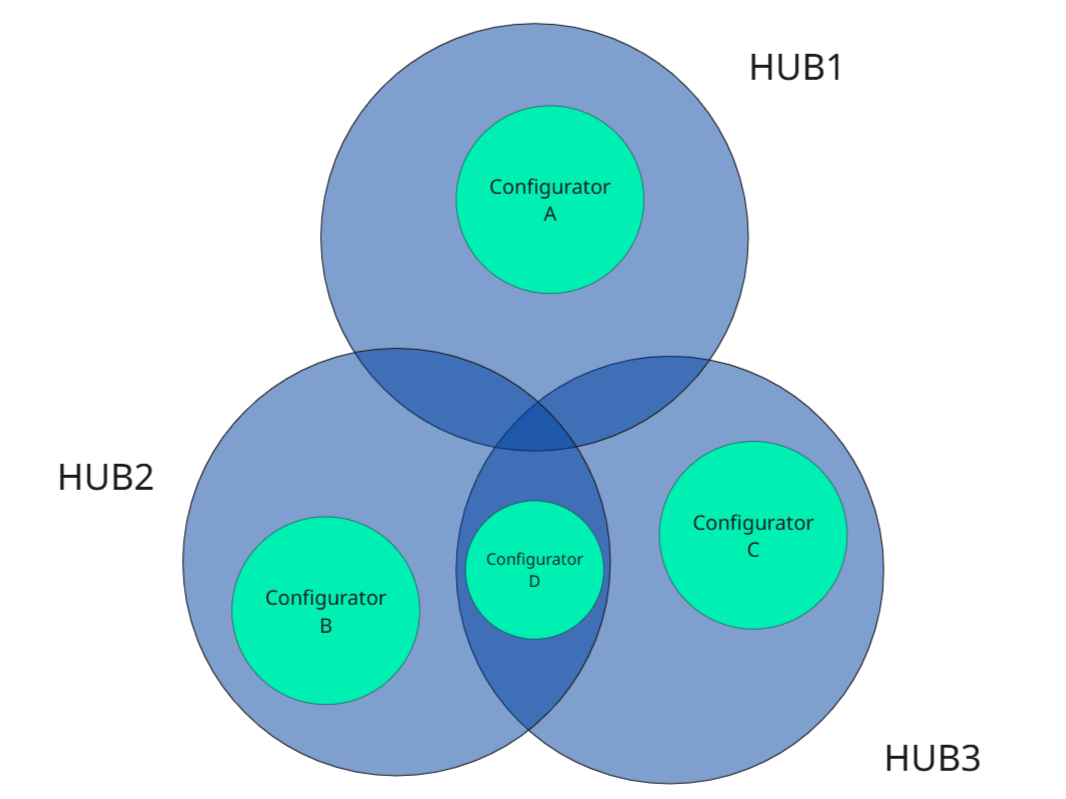
As previously described, every configurator can create quotes in any hub (see the quoteHubName property). In the following example, configurator A, B and C create quotes in their dedicated hubs, but configurator D creates quotes in HUB2 and HUB3. This allows you to create quotes from different configurators, but ensure the same number sequence described in the next section.
This is crucial if products from different configurators should use the same quote numbers in their offers (quote PDFs).
Changing quotes
After you have configured the quote creation and users have already created quotes, you can use them in the quote overview page.
A quote is always linked to a configuration which is is protected and can no longer be modified to avoid inconsistences between the configuration and the resulting quote.
Once you have clicked on a dedicated quote, all details of this quote are shown. You can directly see the resulting quote PDF which is ready to be sent to your customer.
In addition, it’s conveniently possible to change all details of the quote by clicking on the Edit Quote button.
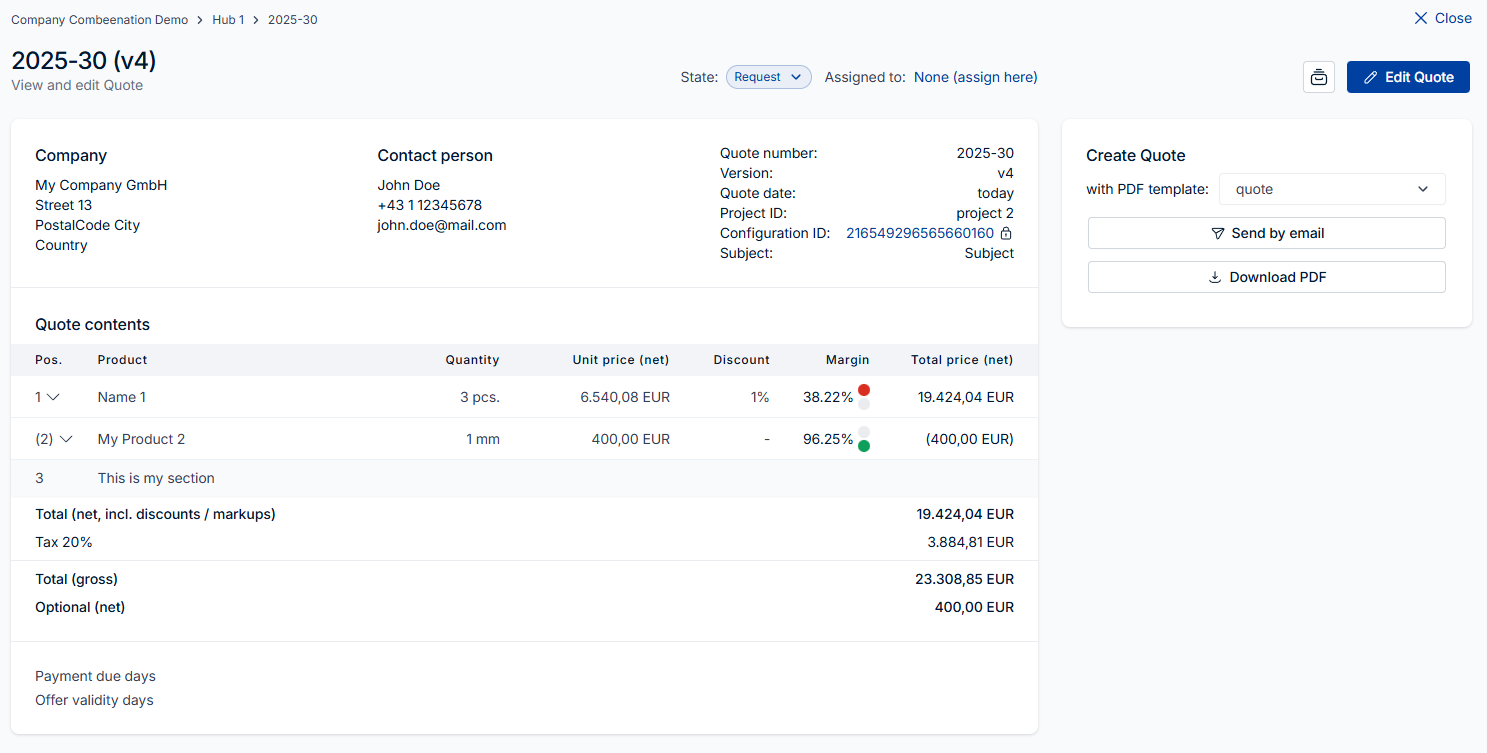
In a quote draft, you can modify contact details, contents and details (tax rules, custom fields, etc.) of the quote.
All properties which violate a quote rule are highlighted, check allowed values in the tooltip. If a quote contains issues, then it’s not possible to publish it.
The button on the right hand side allows you to see a preview of the quote PDF.
.png)
Restoring quotes
If you would like to go back to a previous version or check all changes which have been performed for a quote, then simply click on the history button.
.png)
Was this article helpful?